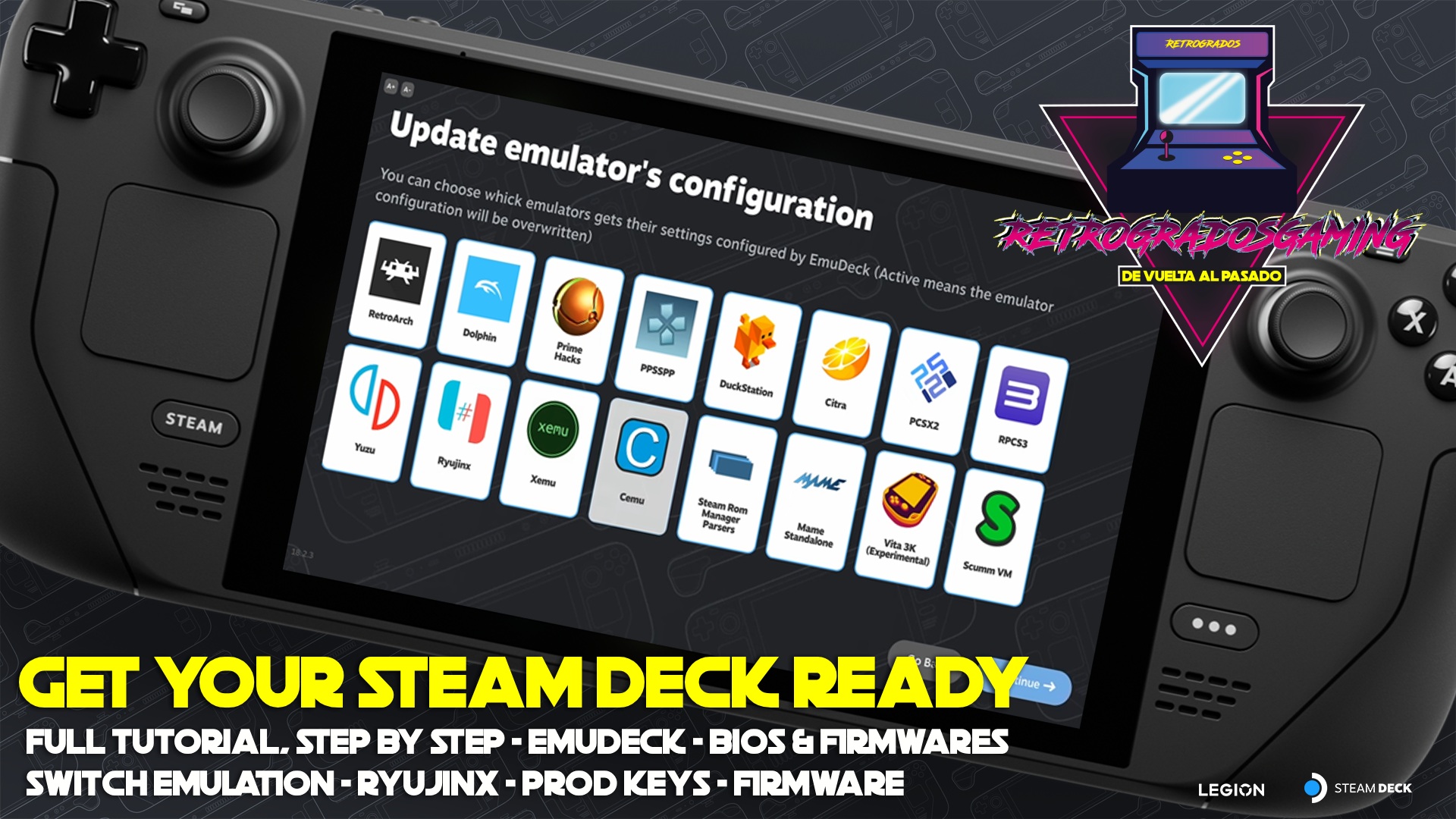
Just Got a Steam Deck? Step by Step EmuDeck Installation Guide for New Users, Emulators and Full Setup
Congratulations on your new Steam Deck! 🎉 You’re now holding one of the most powerful portable gaming devices ever created. This guide is here to help you turn your Steam Deck into an emulation powerhouse, perfect for reliving your favorite classic games. Whether you’re a seasoned gamer or a newcomer to emulation, this step-by-step guide will walk you through installing EmuDeck and configuring everything to work seamlessly.
</figure>Step 1 – Install EmuDeck on Your Steam Deck
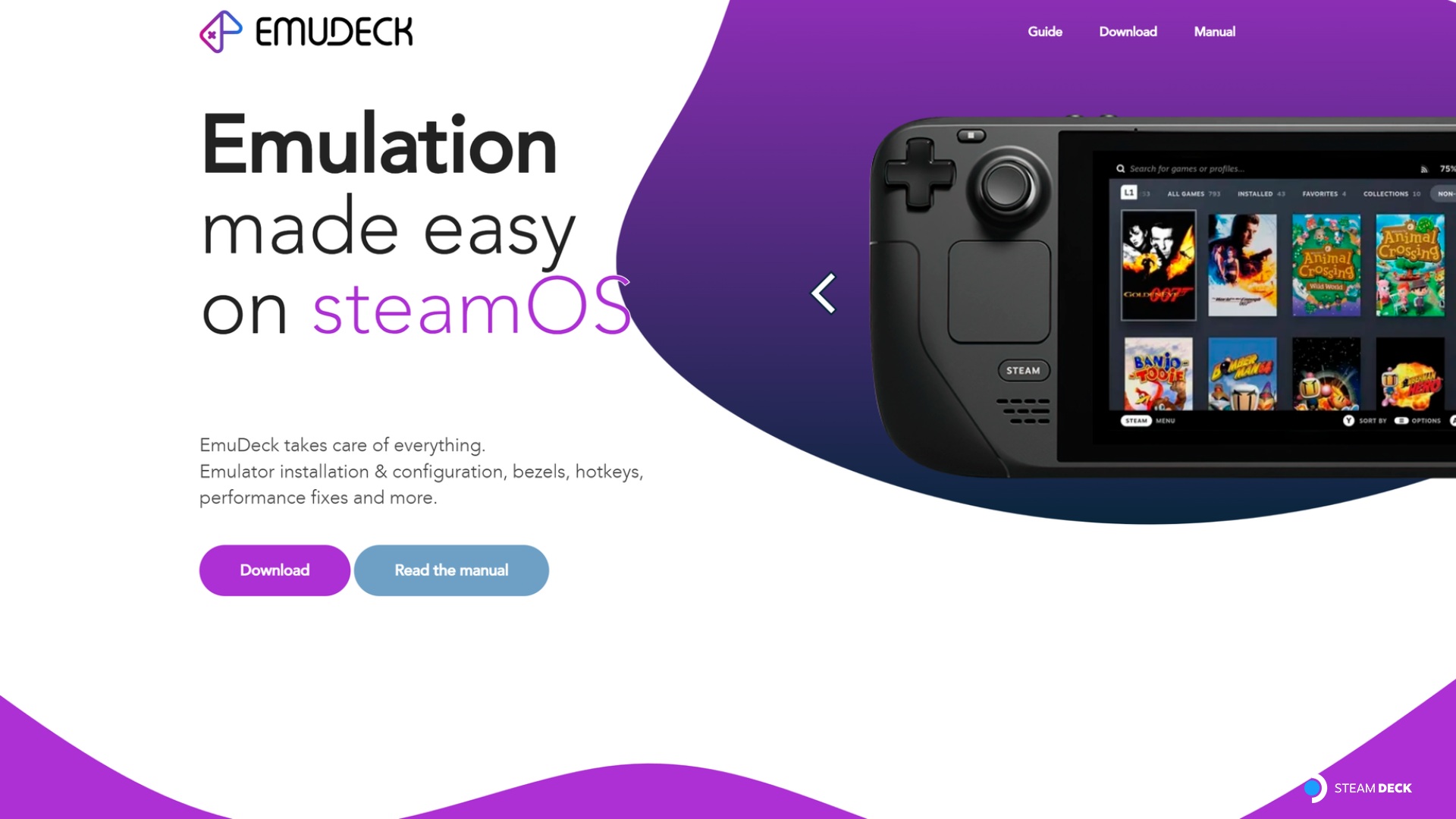
Start by opening the browser on your Steam Deck. Visit the official website at 👉 www.emudeck.com and navigate to the downloads section. Download the SteamOS version of EmuDeck by following this direct link: EmuDeck Download for SteamOS.
Once the download is complete, double-click the file to begin installation. When prompted, choose Run. Opt for the Simple Install option rather than the Advanced one.
Next, decide where to install EmuDeck:
- Internal Storage
- microSD Card
After installation, you're ready to apply our BIOS Patch to enhance compatibility across various emulators.
Step 2 – Download the Retrogrados Gaming BIOS Patch
To streamline your setup, download the BIOS Patch from Retrogrados Gaming. Navigate to the BIOS section and select the Steam Deck version. This patch prepares most consoles for emulation, saving you a lot of time and effort.
Step 3 – Apply the BIOS Patch
Locate the Bios_Steam_Deck.rar file in your Downloads folder. Hold L2 and click on the file. From the menu, select Extract → Extract to…, and choose the directory: home/deck/Emulation/.
If you’re asked to overwrite files, select Yes to All. Now, most consoles are ready to emulate, except for the Nintendo Sw1tch, which requires additional setup.
Step 4 – Install the Nintendo Sw1tch Emulator (Ryujinx)
Open EmuDeck and go to Manage Emulators from the left sidebar. Find Ryujinx in the list and select Reinstall / Update. This will install the Ryujinx emulator.
Step 5 – Install Firmware and Keys for Nintendo Sw1tch
To complete the Nintendo Sw1tch setup, download the necessary Firmware and Keys from Retrogrados Gaming in the Sw1tch section. You’ll need:
firmware.20.3.0.zipprod.keys
Open Desktop Mode on your Steam Deck, search for and launch Ryujinx. In the top menu, navigate to Actions → Install Keys and select the prod.keys file from your Downloads folder. Then, go to Actions → Install Firmware from ZIP and choose firmware.20.3.0.zip.
Configure Controller Input
Within Ryujinx, go to Options → Settings → Input. Set Steam Deck (0) as the input device and save your settings. You’re all set to start playing!
Step 6 – ROMs Download & Correct File Placement
For each game, ensure it’s placed in the correct platform folder. Here are some examples:
-
Super Nintendo (SNES)
home/deck/Emulation/r0ms/snes/- Example:
home/deck/Emulation/r0ms/snes/batmanreturns.smc
-
Nintendo Sw1tch
home/deck/Emulation/r0ms/sw1tch/
-
PlayStation 1 (PSX)
home/deck/Emulation/r0ms/psx/
For a comprehensive guide on file organization, check out our complete manual: Guide to Downloads and File Organization.
🎮 Enjoy the Nostalgia Like Never Before
By following these steps, your Steam Deck will be fully prepared to relive decades of legendary games with modern performance and total portability. Remember, Retrogrados Gaming offers a pre-configured library that can simplify this process, ensuring you have all the classics at your fingertips.
Keep enjoying your consoles! Big greetings to everyone, and have an excellent rest of the week!