The Ultimate Guide to PS3 Emulation on Steam Deck, ROG Ally, and Legion Go Using RPCS3 and Retrobat
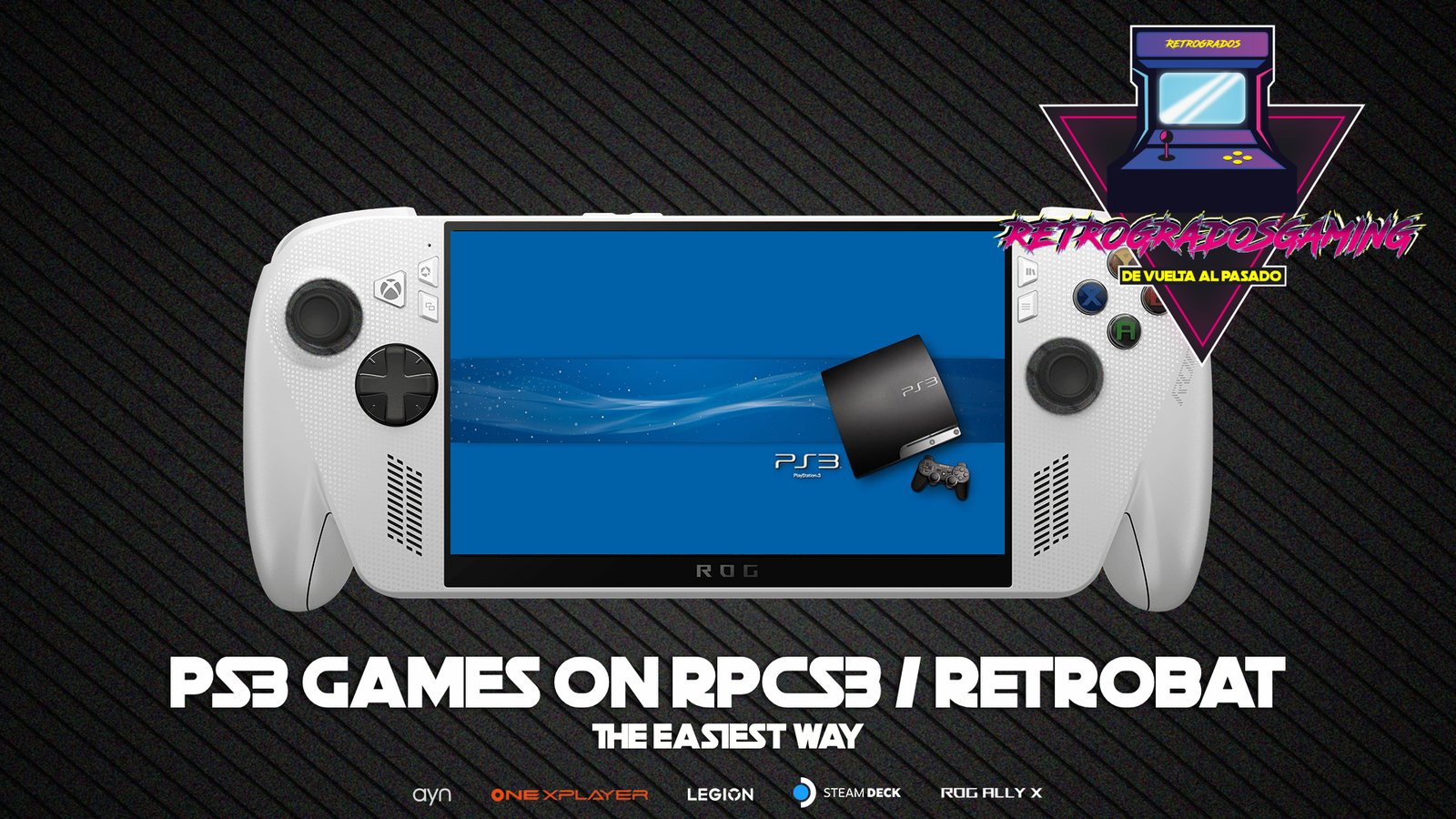
If you own a powerful handheld PC like the Steam Deck, ASUS ROG Ally, or Lenovo Legion Go, you already know that emulation opens the door to one of the greatest gaming libraries in history. Among the most sought-after systems is the PlayStation 3—a console known for its complex architecture and unforgettable exclusives.
But can you really enjoy PS3 emulation on these portable devices? Absolutely. And the best emulator for the job—whether you're running Windows or Steam OS—is RPCS3.
At Retrogrados Gaming, we specialize in helping retro and modern gamers get the most out of their hardware. In this guide, we’ll walk you through everything you need to know about installing and playing PS3 ROMs using RPCS3, with or without the beautiful frontend Retrobat.
Why RPCS3 Is the Best PS3 Emulator for Handhelds
RPCS3 is an open-source emulator that has been in active development for years. With regular updates from a dedicated community of developers, it offers:
- High compatibility with thousands of PS3 titles
- Performance optimizations for both Windows and Steam OS
- Custom settings to get the best frame rates on handhelds like the ROG Ally, Legion Go, and Steam Deck
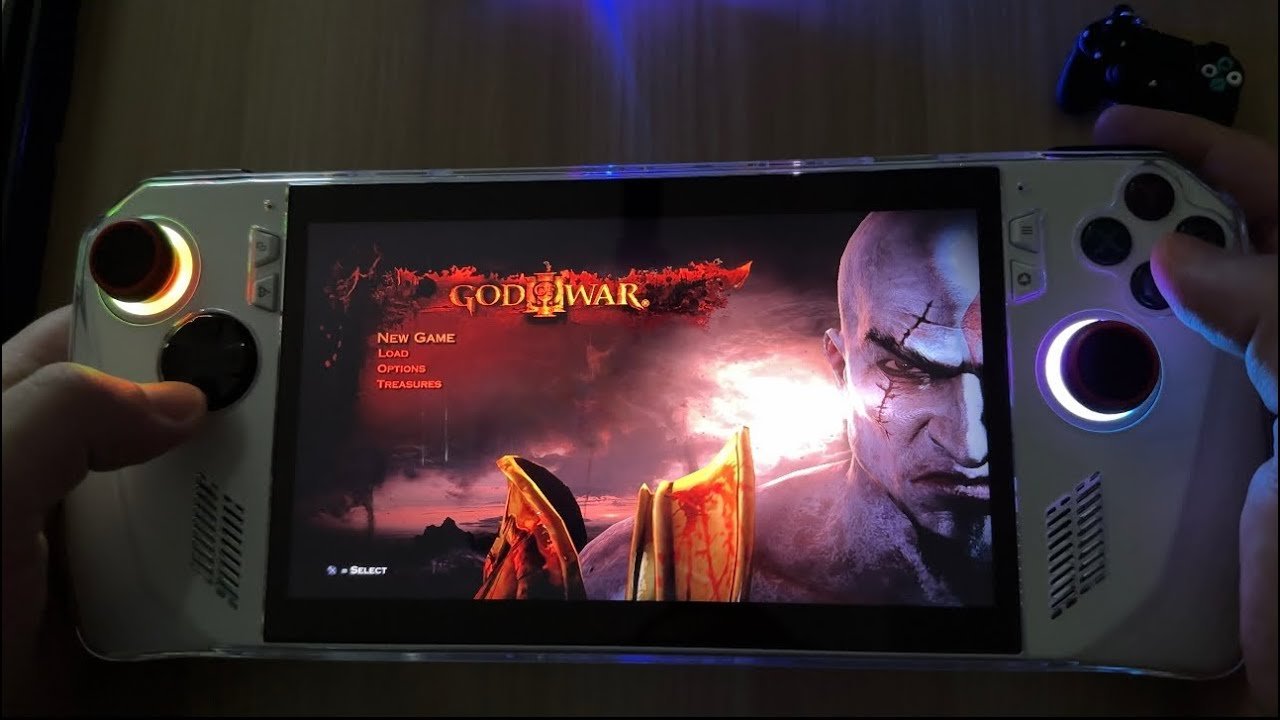
Whether you're playing Demon’s Souls, Red Dead Redemption, or Metal Gear Solid 4, RPCS3 is your gateway to the PS3 library on the go.
</figure>PS3 Game Formats: Which One Should You Use?
Before installing your games, it’s important to understand the three main formats available for PS3 emulation. Each has its pros and cons, especially when storage and installation time are considerations.
PKG Format (Installer Files)
- What it is: A package file that installs the game into RPCS3’s internal structure.
- Pros: Once installed, the original PKG can be deleted.
- Cons: Takes more internal storage and longer installation time.
- Best for: Users who don’t mind waiting and have plenty of internal space.
Folder Format (PS3_GAME)
- What it is: A folder containing the game’s extracted files.
- Pros: Faster installation, no need to copy the game into RPCS3’s internal directory—you can keep it on an external drive.
- Cons: Cannot be deleted after installation (RPCS3 only creates essential files).
- Best for: Users who want to manage large libraries on external storage.
ISO Format
- What it is: A disc image file.
- Pros: Faster downloads, especially with tools like Air Explorer (fewer files to transfer).
- Cons: Requires mounting or direct loading.
- Best for: Quick downloads and testing.
Retrogrados Gaming Tip: For the best balance of speed and storage, we recommend using Folder Format games—especially if you’re using Retrobat.
How to Install PS3 Games on RPCS3 (Step by Step)
Installing PKG Games
- Navigate to
C:/retrobat/emulators/rpcs3/(or your RPCS3 install location). - Launch RPCS3.
- Go to Help → Check for Updates to ensure you're running the latest version.
- Open File → Install Packages.
- Locate your PKG files.
- Install the larger PKG first, then the smaller PKG.
- If you have a
.RAPfile (used to unlock content), install it the same way. - Launch the game from the RPCS3 game list and enjoy!
Installing Folder Format Games (PS3_GAME)
- Open RPCS3.
- Go to File → Add Games.
- Navigate to the folder that contains PS3_GAME.
- Click Select Folder.
- The game will appear in your library.
- Run it once to complete the essential installation—then you're ready to play.
Installing ISO Games
- Open RPCS3.
- Go to File → Add ISO Game.
- Select your ISO file.
- The emulator will handle the rest.
</figure>The Retrobat Advantage: Auto-Detection for PS3 ROMs
If you’re using Retrobat—a popular frontend that turns your handheld into a retro gaming powerhouse—you can skip manual installation entirely.
Here’s how:
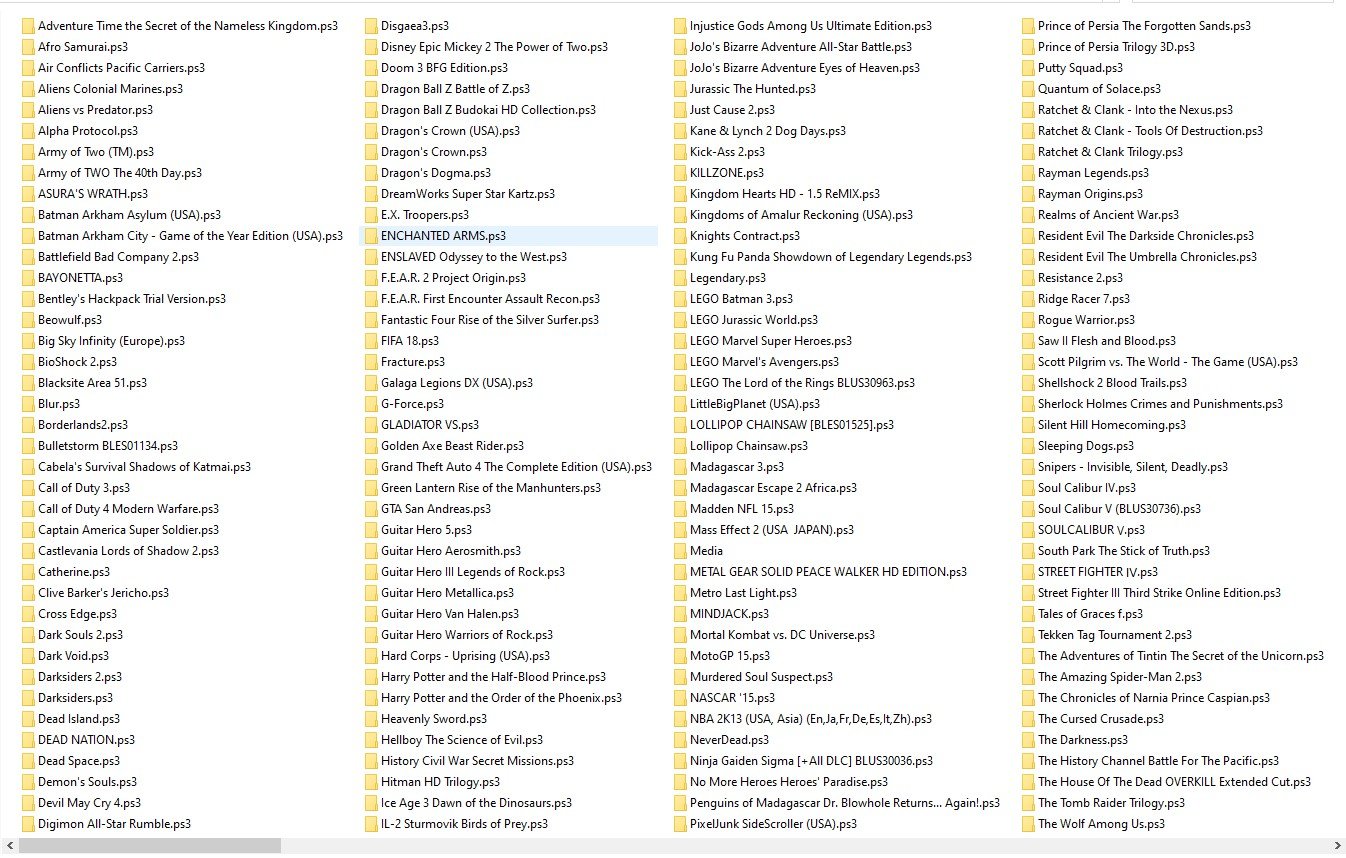
- Place your PS3 games in Folder Format inside your Retrobat ROMs directory:
C:/retrobat/roms/ps3/
- Rename the game folder with the
.ps3extension. For example:C:/retrobat/roms/ps3/Metal Gear Solid V.ps3/
That’s it. Retrobat will automatically detect the game and tell RPCS3 to run it without any extra steps.
This method eliminates confusion and saves time—especially when building a large library of PS3 ROMs on your Steam Deck, ROG Ally, or Legion Go.
Optimizing RPCS3 for Steam Deck, ROG Ally, and Legion Go
Each handheld has its own strengths. Here are quick performance tips:
- Steam Deck (Steam OS): Use the Linux build of RPCS3 or run the Windows version via Proton. Adjust TDP and GPU clocks for demanding titles.
- ROG Ally (Windows): Take advantage of the Z1 Extreme chip. Set RPCS3 to use performance cores and enable AMD FSR if needed.
- Legion Go (Windows): Similar to the ROG Ally, but with a larger screen—great for RPGs and cinematic games.
Always check the RPCS3 Compatibility List for each game and apply recommended settings.
</figure>Where to Get PS3 Games and ROMs for Your Handheld
Now that you know how to install and run PS3 games on your Steam Deck, ROG Ally, or Legion Go using RPCS3 and Retrobat, the next logical question is: where do you get the games?
At Retrogrados Gaming, we’ve made this incredibly easy for you. We offer a curated PlayStation 3 Romset with over 200+ pre-tested titles, all optimized for the RPCS3 emulator.
Why Choose Our PS3 ROM Pack?
- 200+ Hand-Picked Games: A massive library covering action, RPGs, sports, fighting, and cult classics. From Demon’s Souls and Uncharted to Metal Gear Solid and Kingdom Hearts, we’ve got you covered.
- Ready-to-Play Format: All games are provided in Folder Format (.ps3), which means:
- Faster installation – no lengthy PKG installs.
- Perfect for Retrobat – just drop them into your
roms/ps3/folder and they’re auto-detected. - Storage flexibility – keep your library on an external drive to save internal space.
- Instant Digital Delivery: Access is delivered immediately via Google Drive after purchase. No subscriptions, no expiration – just lifetime access to your library.
- Tested for Compatibility: Every title has been pre-tested to ensure the best possible performance on powerful Windows PCs, Steam Deck (in Windows mode), ROG Ally, and Legion Go.
You can explore the full collection and grab your copy here: 👉 PlayStation 3 Romset – 200+ Games for RPCS3
Want Even More?
This PS3 collection is also included in our massive 20TB Retro Pack, which features thousands of ROMs across dozens of consoles. It’s the ultimate library for any emulation enthusiast.
Final Thoughts: PS3 Emulation Has Never Been Easier
Thanks to RPCS3 and frontends like Retrobat, playing PS3 games on handhelds like the Steam Deck, ROG Ally, and Legion Go is more accessible than ever. Whether you prefer the flexibility of Folder Format games or the simplicity of Retrobat auto-detection, there’s a workflow for every type of gamer.
At Retrogrados Gaming, we’re passionate about keeping classic and modern gaming alive on the best portable hardware. Bookmark this guide, share it with fellow emulation enthusiasts, and get ready to enjoy your favorite PS3 titles wherever you go.