Install Eden Emulator from an AppImage Format on Your Steam Deck
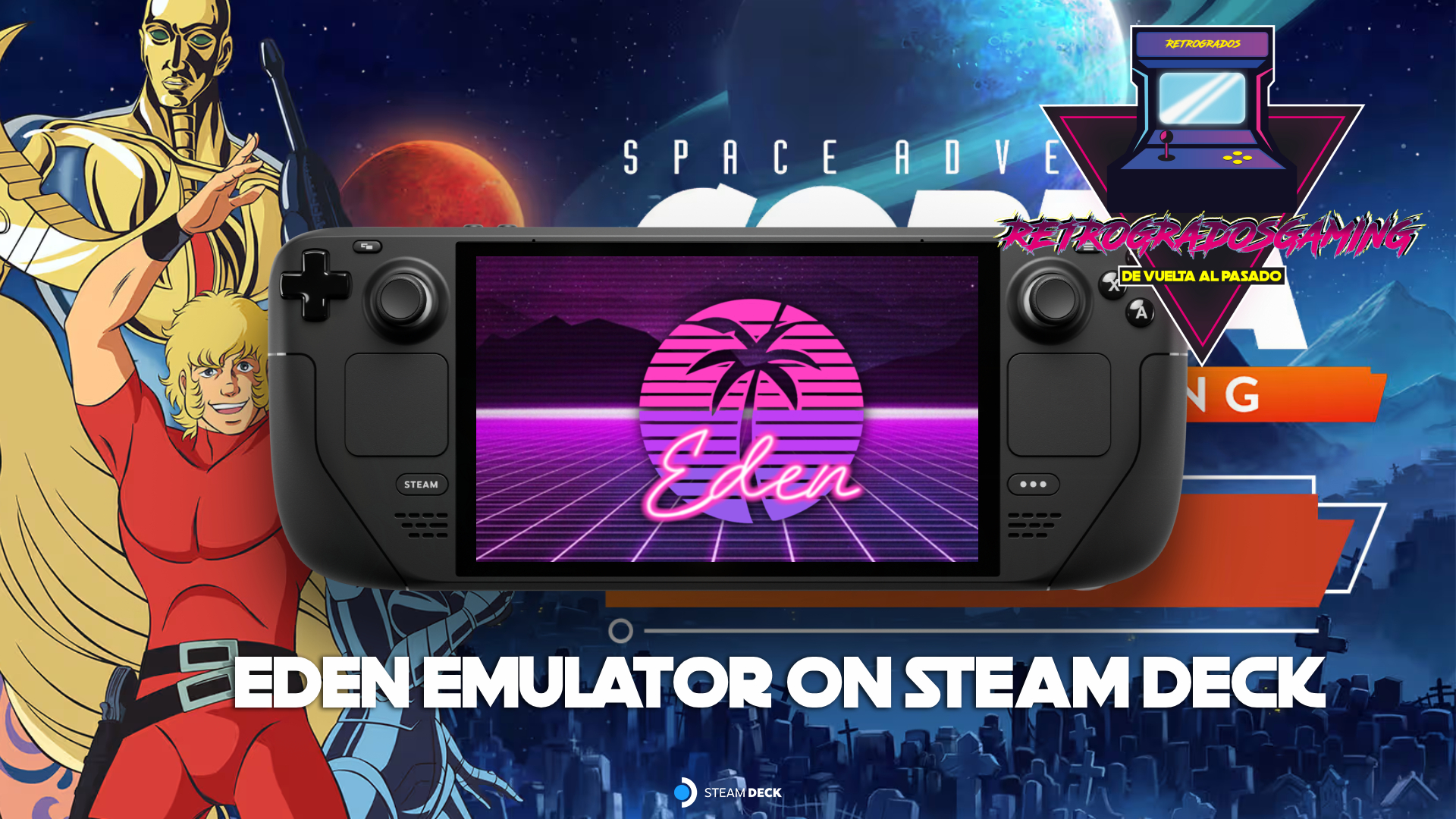
If you're a retro gaming aficionado exploring the depths of emulation on your Steam Deck, you're likely familiar with the joys of Ryujinx. However, when it comes to installing the Eden emulator, things aren't as straightforward, especially since it isn't available through Emudeck. Fear not, fellow gamer, as I'm here to guide you through the process of installing Eden using an AppImage format. Once set up, you can seamlessly switch between your favorite platforms and enhance your gaming experience.
Why Choose Eden Emulator?
Before diving into the installation steps, let's briefly discuss why you might want to add Eden to your emulation repertoire. Eden is renowned for its versatility and efficiency in handling various Nintendo Switch games, making it a fantastic choice for those aiming to expand their library of playable titles on the Steam Deck.
Step-by-Step Guide to Installing Eden
1. Switch to Desktop Mode
To begin, you'll need to access the Desktop Mode on your Steam Deck. This mode allows you to manage files and installations beyond the standard Game Mode interface.
- Press the Steam button on your device.
- Navigate to Power.
- Select Switch to Desktop.
This simple step transforms your Steam Deck into a more traditional PC interface, granting you greater control over installations.
2. Download Eden
Visit the official releases page to download the latest build of Eden tailored for the Steam Deck. Here’s the link for your convenience:
3. Move the AppImage
After downloading the AppImage file, you need to move it to a location within your file system where it can be easily accessed. A common practice is to place it in the Applications folder:
- Navigate to
/home/deck/Applications/. - Drag and drop the downloaded file into this folder.
This step is crucial for maintaining an organized file structure, especially if you plan to manage multiple emulators.
4. Make the AppImage Executable
For the AppImage to run, you'll need to set it as an executable file:
- Right-click the AppImage file.
- Select Properties.
- Access the Permissions tab.
- Ensure the box labeled "Is executable" or "Allow executing file as a program" is checked.
This is a common step when dealing with Linux-based systems and ensures the emulator can function properly.
5. Launch Eden
With everything set up, you're ready to launch Eden:
- Double-click the AppImage.
Eden should now open normally, allowing you to configure your emulator settings and start gaming.
Integrating Eden into Game Mode
While Desktop Mode is handy for setup and configuration, most users prefer the streamlined experience of Game Mode. To add Eden to Game Mode, you'll need to create a shortcut:
- Open Steam in Desktop Mode.
- Go to Library and select Add a Non-Steam Game.
- Browse to your
/home/deck/Applications/folder. - Select the Eden AppImage and click Add Selected Programs.
Once added, you can switch back to Game Mode, and Eden will appear just like any other game in your library.
Common Installation Pitfalls and Solutions
During installation, you might encounter a few common issues:
- AppImage not executing: Double-check the permissions to ensure it's marked as executable.
- Missing dependencies: Ensure your system is up-to-date to avoid missing any necessary libraries.
- Game Mode integration missing: Verify that the correct file path was selected when adding Eden to Steam.
Conclusion
Installing the Eden emulator on your Steam Deck is a straightforward process, thanks to the flexibility of AppImage formats. With Eden up and running, you'll enjoy a broader array of gaming experiences right from your handheld device. If you find yourself wanting a more extensive collection or need further assistance, consider exploring resources like Retrogrados Gaming. Their pre-configured libraries can save you time and effort, letting you dive straight into the action without the usual setup hassles.