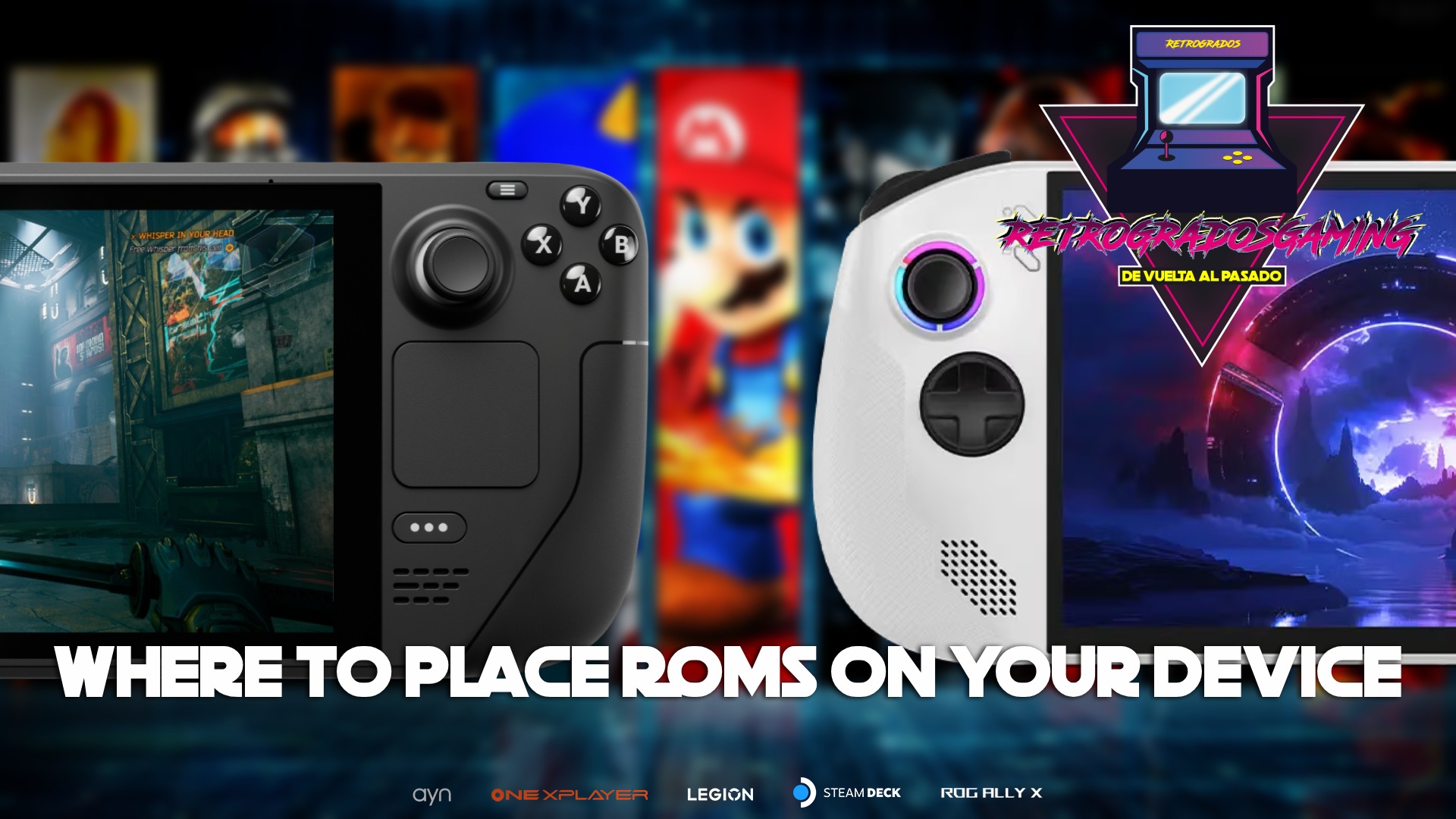
How to Add ROMs to Steam Deck, ROG Ally, and Windows Handhelds
If you're diving into the retro gaming universe through devices like the Steam Deck, ROG Ally, or other Windows handhelds, you'll probably want to maximize your experience by adding ROMs. While it might seem daunting at first, the process is straightforward once you understand a few key concepts. This guide will walk you through everything you need to know.
Setting Up Emulators and Frontends
Before you can play your favorite ROMs, setting up the right emulators is crucial. Emulators are software that mimic the hardware of a console, allowing you to play games from different systems on your device. However, managing multiple emulators can become tedious without a streamlined interface.
This is where frontends come into play. Popular options include RetroBat, EmulationStation, EmuDeck, and RetroDECK. These frontends manage all your emulators and ROMs under one roof, making it easier to switch between games and platforms.
What Are Frontends?
Frontends are essentially management systems that organize and launch your emulators from a single interface. Instead of downloading, configuring, and maintaining dozens of separate emulators, a frontend can install and manage many of them for you, along with the necessary emulator cores. This allows you to run games from multiple platforms through a single unified application.
For Steam Deck users, EmuDeck is a highly recommended choice. It simplifies the process of managing your emulators and ROMs by providing a user-friendly interface.
How to Add ROMs to Steam Deck
Once you've set up EmuDeck, adding ROMs is the next step. Understanding the folder structure is essential to ensure that EmuDeck can detect and organize your games correctly.
Understanding the EmuDeck Folder Structure
When installing EmuDeck, you can choose where to install it. Most users opt for internal storage to keep everything organized. By default, all ROMs are stored inside a central directory that contains separate folders for each supported platform.
The main ROM directory is:
/home/deck/Emulation/roms/
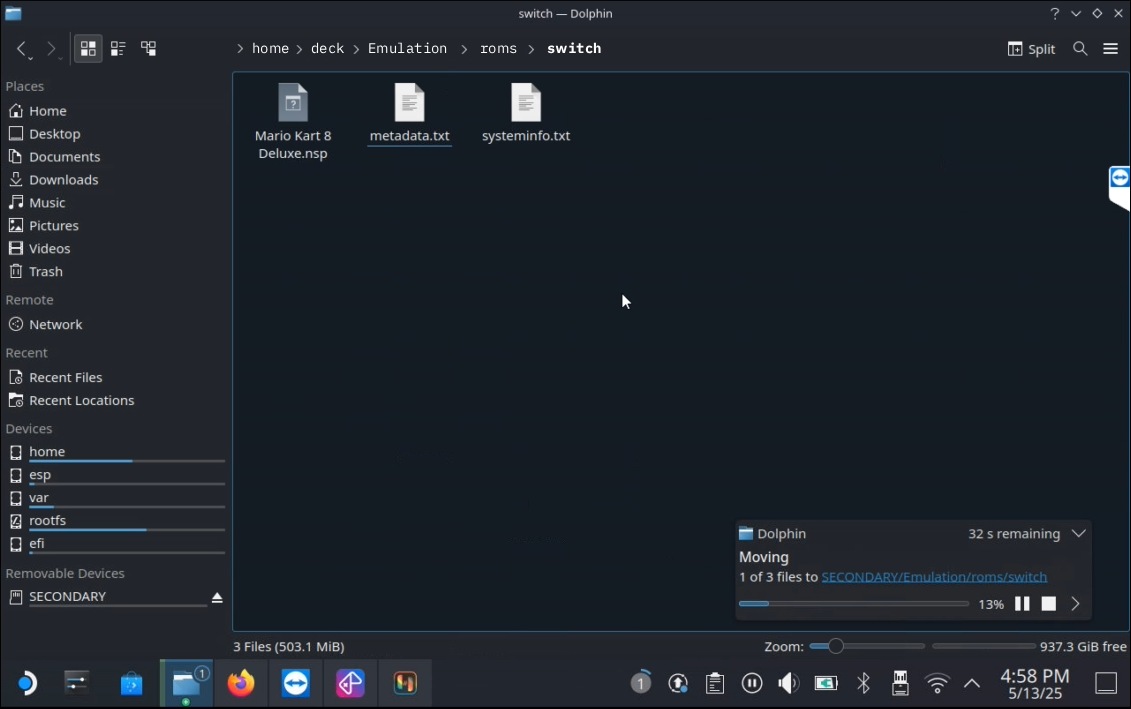
</figure>Inside the roms folder, you'll find subfolders for each platform. For example, if you want to play Nintendo Switch games that you've already dumped from your own collection, you'll place them in:
/home/deck/Emulation/roms/switch/
So if you have a game called Contra.nsp, the final path would be:
/home/deck/Emulation/roms/switch/Contra.nsp
This same principle applies to all other supported platforms.
</figure>Important Tips
On Steam Deck, downloaded files are typically stored in the Downloads folder by default. Whenever you finish downloading content, you'll need to:
- Open the Downloads folder.
- Cut or copy the downloaded ROM files.
- Move them to the appropriate folder inside
/home/deck/Emulation/roms/Platform_Name/.
Once the ROMs are in the correct location, EmuDeck and EmulationStation will be able to detect them.
BIOS and Firmware Requirements
Although adding ROMs is simple, many systems require additional BIOS files or firmware packages to function properly. Make sure you have all the required BIOS and firmware files for the systems you wish to emulate. Without them, some games may fail to launch, or certain emulators may not work correctly.
At Retrogrados Gaming, we provide access to BIOS files, firmware packages, and other resources through our content servers. You can browse our public downloads section or access our private content servers available to Retrogrados Gaming customers.
How to Add ROMs to Windows Handhelds and PCs
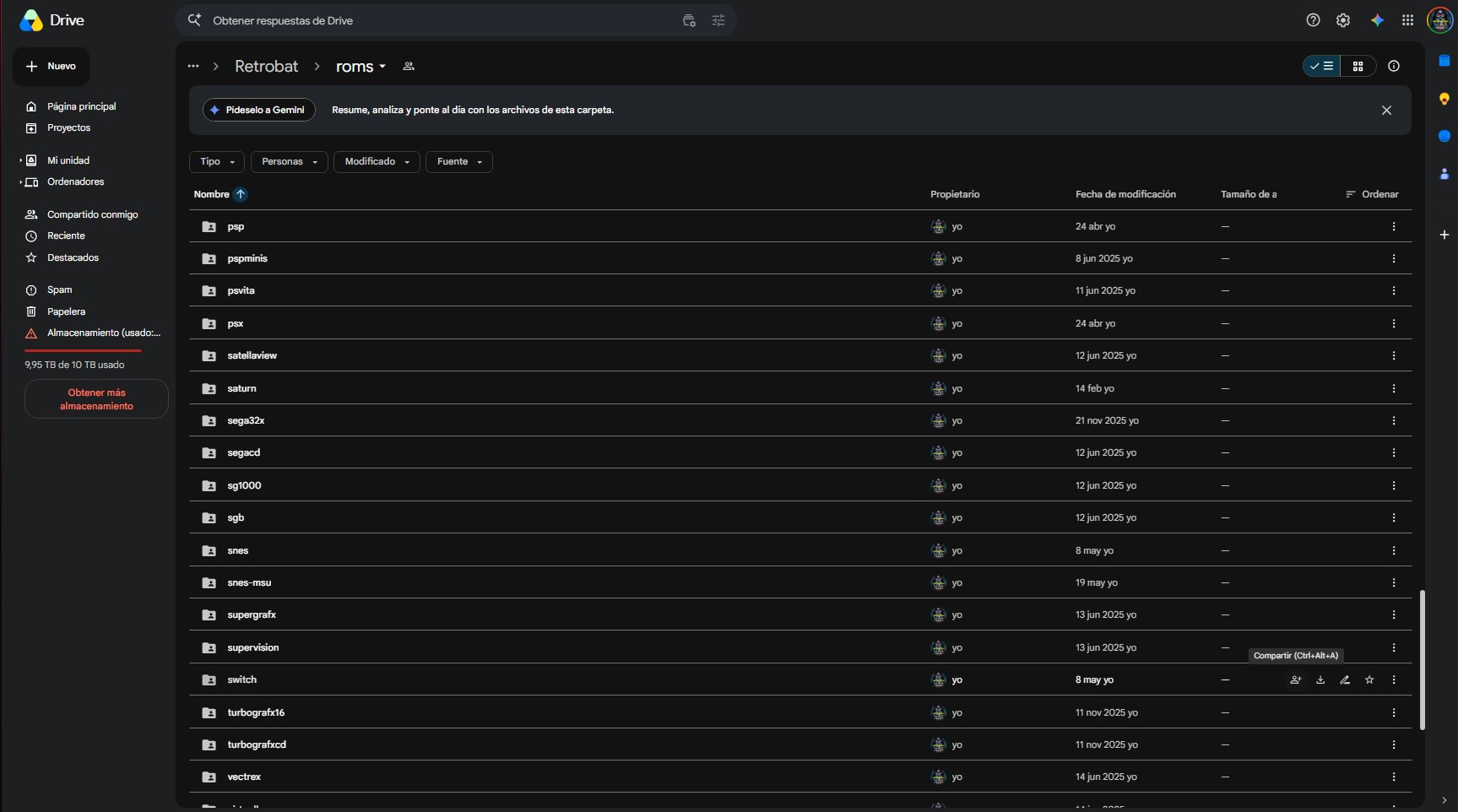
The process of adding ROMs to Windows devices is quite similar to the Steam Deck. Assuming you've installed RetroBat, you'll typically find the ROM directory here:
C:/retrobat/roms/
Inside the roms folder, you'll find separate folders for every supported platform. For example, Super Nintendo ROMs should be placed in:
C:/retrobat/roms/snes/
The same logic applies to all other systems. Once the ROM files are copied into the correct folders, RetroBat will automatically detect them during its library scan.
Downloading Games with Air Explorer
One of the advantages of Windows-based devices is the ability to use tools such as Air Explorer. If you have access to a content server, Air Explorer allows you to:
- Download individual games
- Download complete game collections
- Create automatic download queues
- Select custom download locations
Simply choose the destination folder inside your RetroBat ROM directory and let Air Explorer handle the download process.
Final Thoughts
Adding ROMs to Steam Deck, Windows handhelds, and gaming PCs is actually quite simple once you understand the folder structure used by EmuDeck and RetroBat. The most important steps are:
- Install the appropriate frontend.
- Place your ROMs in the correct folders.
- Ensure you have the required BIOS and firmware files.
- Refresh your game library.
Once everything is set up, you'll be ready to enjoy thousands of classic games across dozens of gaming platforms from a single unified interface. For those looking to streamline this process, consider using a pre-configured library from a trusted source like Retrogrados Gaming, which can help bypass many of the common pitfalls and get you gaming faster.